Tuesday, December 8, 2020

Voice Instructions With Mote When You Make A Copy For Each Student


In a recent blog post (click here to read), I demonstrated a new update to the Mote Chrome extension. This update allows you to record voice notes with Mote and paste the link anywhere. Previously, Mote recordings could only be embedded in Google Classroom and other Google Workspace apps. 

Giving students verbal instructions is a very useful strategy. Students who struggle to read often better understand hearing the instructions read aloud by the teacher. This is a great scaffold for English learners. Using the Google Classroom platform, a common practice is to attach Slides or Docs and make a copy for each student.

Now that you can paste Mote recordings anywhere, you can create a template Slide or Doc with the Mote link pasted in. When you make a copy for each student in Google Classroom, the voice recording is instantly distributed to all students. Check out the example below.


Love Quizizz? Become a Certified Game Changer


Just before Thanksgiving break, I received an email from Quizizz encouraging me to go through their new certification process. Since I use Quizizz quizzes and lessons weekly, this was a no brainer. The process was a self guided Quizizz lesson that consisted of 45 slides. In the lesson, you have to show basic knowledge of Quizizz functions and uses. It is required to get 80 percent of the questions correct to pass. The process took about 30 minutes and was very enjoyable. 

If you use Quizizz on a regular basis, I highly encourage you to test your knowledge of this ever evolving tool and go through the certification process. Click here to give it a shot.  When you pass, you'll initially receive some cool badges for social media posts and your email signature. A formal certificate comes a few weeks later.

Monday, December 7, 2020

Get "Moted" with Motepad


If you're anything like me, you probably love using the Mote Chrome extension to leave verbal feedback for students. Some students, English learners in particular, respond better to verbal feedback instead of merely text. 

Mote has been a great tool for leaving feedback. Until recently, Mote existed within Google Workspace (formerly GSuite) apps such as Docs, Slides, Classroom, etc. Now the Mote extension allows you to create verbal notes and feedback from any screen when you're using Chrome. Mote calls this Motepad. Check it out, in action, on this YouTube video.

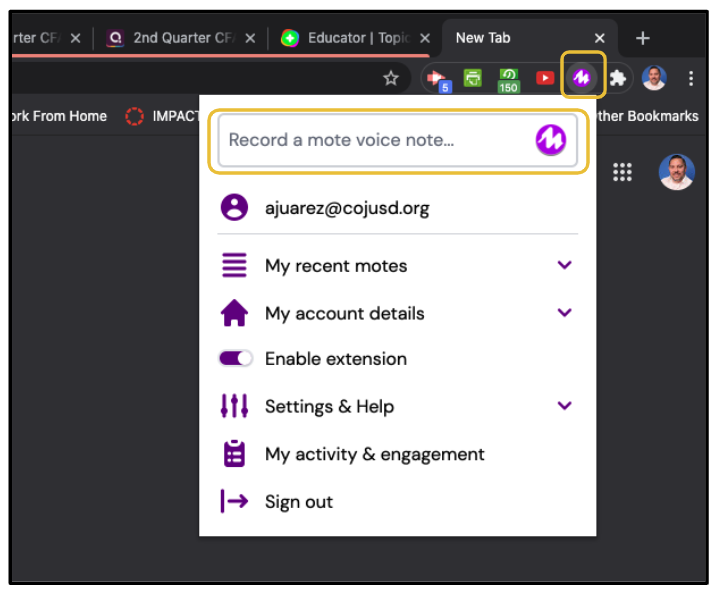
Click the extension and in the dropdown menu, click Record a mote voice note. 


Immediately, you'll see the 1:30 countdown timer for you to start recording. 


Click done when you're finished and it will automatically copied to your clipboard. 
With your mote voice recording now on your clipboard, the possibilities of where you can paste it are endless. It can be placed into a Gmail message, a Chat response just to name a few. You can paste it anywhere you need to respond or reply on the internet.

If you have any questions and would like a follow up, contact me via Gmail or Hangouts at ajuarez@techcoachjuarez.com. 


Two Relatively New Updates to Google Meet (Not Enterprise)


If you have Google Workspace (formerly GSuite) Enterprise Edition, you have all the bells and whistles, so far, for Google Meet. We have the Google Workspace for Education Edition. The Education edition will not ever have all the bells and whistles like the Enterprise edition. Education edition users will get certain features at a later time than Enterprise users.

A recent update to the Education edition includes the ability for participants to Raise hand. The teacher will get a notification of the student's hand being raised. The student can also click the Raise hand button to lower their hand if needed. You can find the Raise hand button on the bottom toolbar when participating in a Google Meet video call.


Another new update is reminiscent of Zoom. A popular Zoom feature is to change your background. Now, on the Google Meet Education Edition, you are able to choose from preset backgrounds and blur your background. To access this, click the three dots in the bottom right corner of the screen. Click Change background.


What you see below is your background options. By default, no background is selected. At this point, you are not able to upload custom backgrounds.


You may select one of the preset, selected backgrounds or choose between a blurred or slightly blurred screen.

Thursday, December 3, 2020

3 "Slept On" Aspects of Google Workspace

In the hip hop music genre, the term "slept on" refers to artists, albums or songs that are very good, but have been ignored or overlooked. In Google Workspace, formerly GSuite, there are many small features and apps that are often overlooked. Three slept on aspects of Workspace that can be time savers and improve efficiency are attaching documents to Google Calendar events, creating new Calendars, and using the side panel in Gmail.

Don't schedule a meeting in Google Calendar and separately share a meeting agenda (Google Docs). Kill two birds with one stone by attaching the agenda to the Calendar event. Start by clicking the Attachment button on a Calendar event.


Choose your Agenda file from Google Drive.


When you Save the Calendar event, you will invite attendees via email. When doing so, you'll be prompted to set up the viewing permissions for attendees. Doing this will prevent you having to go back later and share the file with attendees. Attendees will be able to access the file right from their Google Calendar.

When scheduling meetings in Google Calendar, don't invite attendees to individual events, create a new calendar and invite attendees to access the new calendar. When you create the events, add them to the new calendar. This way, attendees only need to accept access to the calendar one time and they will have access to all events placed on it. This eliminates the need for attendees to deal with multiple emails for accepting individual event invites. 

This is useful if you are department or grade level lead, an administrator scheduling staff meetings and or teachers scheduling club or sports team meetings. Start by clicking the "plus" button next to Other Calendars.


In the drop down menu that appears, click Create new calendar.


Title your Calendar then click Create calendar. You'll see a status bar at the bottom while it is being created. When it's finished, it will say successfully created. Click the Configure button to invite people to access it.


When scheduling meetings, just below the Add notification button, you will see your default Calendar. By default, all Calendar events you create are put there. Your default Calendar is your name. To add the event to another Calendar, click your name and choose another Calendar from the menu that appears.


We spend much of our screen time in Gmail. Gmail has evolved into a one-stop shop. Most of Google's services, and the apps you need, are accessible right within Gmail. You can use them without having to tab hop in Chrome. A commonly slept on aspect of Gmail is the side panel. On the right side of Gmail, you will see a side panel that gives you at a glance access to Google Calendar, Google Keep, Google Tasks and other add ons. 
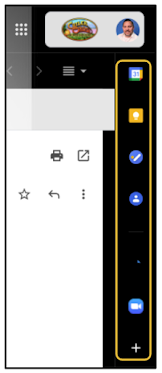

Instead of tab hopping to see your Google Calendar, click the Calendar button on the side panel. When you click on an event, you are able to edit events and add other information.


Use the side panel to access your Google Keep Notes. You are able to create new notes and edit already made notes.


Google Tasks exists entirely within the side panel. Use Tasks to track "to do list" things and action items from email messages. Each task can be have a time based reminder set. Reminders can be recurring as well.

Below the apps above, if you click the "plus" button, you will access a marketplace to add other apps that can be accessible in the side panel. 


Save Time with Google Classroom Grading Tool Filter

A common issue we face in distance learning is students not turning in assignments. I really wish there was a magic bullet that could solve this issue. If one ever appears, I'll be sure to write a blog about it. This blog, though, is about the assignments that do get turned in. 

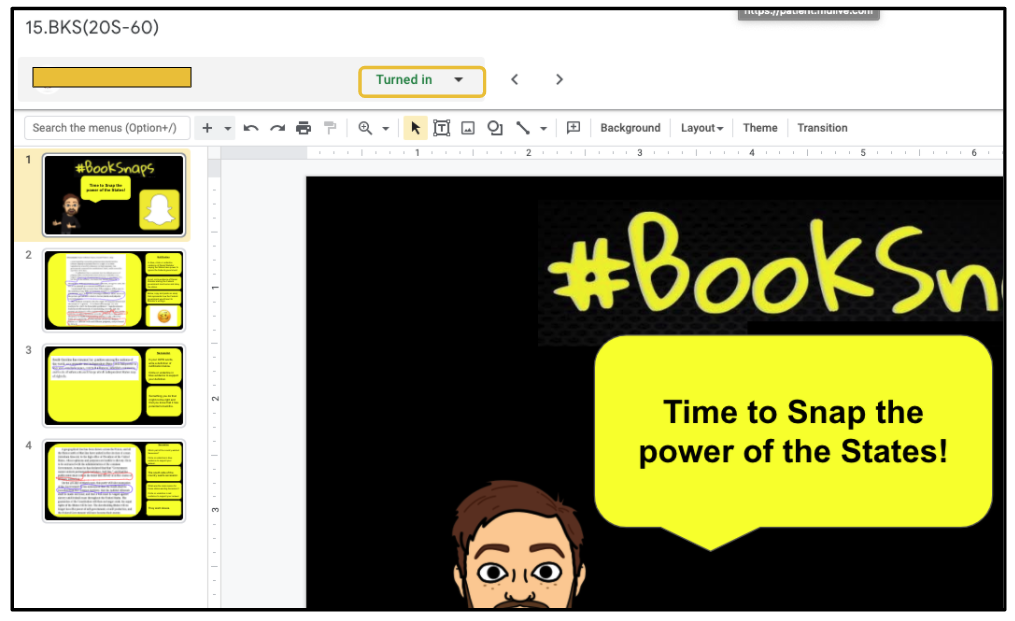
One of my favorite aspects of Google Classroom is the Grading Tool. It allows you to quickly access student work, evaluate it and leave feedback. One annoying part of the tool is having to sift through the student work that wasn't completed while trying to grade the ones that are finished. To easily focus on the work that is finished, click the little arrow next to the Turned in button.


After clicking the arrow, just below, you'll see options to Sort by. Click Status. 


Clicking Status will put all of the student submissions that have been Turned in first in line. This will allow you to go through all the Turned in submissions in order without having to skip through the ones that are still Missing. 


In addition to filtering by Status, you can also filter by students' first names and last names. Though a small, simple feature of Google Classroom, changing the filter in the Grading Tool can be a time saver. Anything we can do to save time this time of year is useful.

Thursday, November 19, 2020

Participation Points for Synchronous Lessons in Distance Learning


By this point in distance learning, we all have a pretty good idea of which students will participate in a synchronous lesson and who won't. Before COVID, there were always those few students who were just flies on the wall. They were physically present, but did not contribute or participate. The same is true in distance learning. They're logged into the Zoom or Google Meet, but they do not engage. 

I really wish there was a magic wand or magic bullet to get 100 percent of students participating all the time, but let's be honest, so such thing exists. Dealing with this reality, I have found participation points as an idea that has helped get more students involved in synchronous lessons. 

One way the powers that be are holding schools accountable is through the gradebook. Teachers have been instructed to submit, weekly, copies of assignments and grades. This is meant for auditors to see how students are engaging in distance learning. By no means I am I a fan of this, but it is reality.

Daily assignments is not something all teachers do. Finding something to grade daily can be a tedious thing. Below are some of the ways I use participation points as a method of "daily grades" for the auditors and to keep students engaged during a synchronous lesson


Checking for understanding is just good pedagogy whether in distance learning or not. Back in the day, I remember teachers using popsicle sticks to randomly choose students to demonstrate understanding. I remember closing my eyes hoping I wouldn't get picked. When I didn't hear my name, I tuned out. Technology has made it so we don't need popsicle sticks anymore. Apps such as Quizizz, Pear Deck, Nearpod and more allow teachers to have every student answer checking for understanding questions. These tools offer informal, authentic formative assessment. 

These apps all provide reports of student answers and responses when a lesson has ended. Those reports can be used for those daily grades auditors are looking for and as participation points. Students who participate can get a little boost to their grade. For many students these days, a little boost in confidence might be just what they need to push through these troubling times.


Exit tickets are simple, daily participation points activity. Exit tickets can be facilitated easily in Google Classroom via the Question function. A way I use the Question function weekly is to have students reflect and write a real life to content connection before leaving Zoom. Google Classroom scores can be imported to our grade system (Illuminate) so entering those grades for the auditors is simply a few clicks of the mouse. Below is a screenshot of a Google Classroom Question activity that I use weekly as an Exit Ticket. 


If you're looking some other quick ways to have students earn participation points, check out two of my favorite Eduprotocols, Thin Slides and Iron Chef. Both can be done easily within an hour long synchronous lesson. Click here to see my blog post on Thin Slides in distance learning.  Click here to see my blog post on Iron Chef in distance learning. 


The chat in Zoom is another simple way to track participation points. If you are using Zoom, you can set it to automatically download a record of the chat when the Zoom call is finished. Student responses in the chat could be used for participation points purposes. 


If students are working independently during a synchronous lesson, another way to give participation points is to give them a "minimum progress" goal. For example, in Google Classroom, you could have students working on a Google Slides activity where you made a copy for each student. Students could mark the text or complete tasks on each slide. Booksnaps is a good example of this. You can set them a target of completing a certain number of slides during class time as a way for them to earn participation points. While students work independently, you can look in on their progress and provide feedback as well.

The COVID crisis and distance learning has changed the way we teach dramatically. Accountability and auditors are a reality whether we like it or not. Participation points are not a new idea, but they can be leveraged to help better engage students while giving the powers that be what they are looking for. How do you use participation points in your synchronous lessons? If you have some ideas, I'd love to hear them.